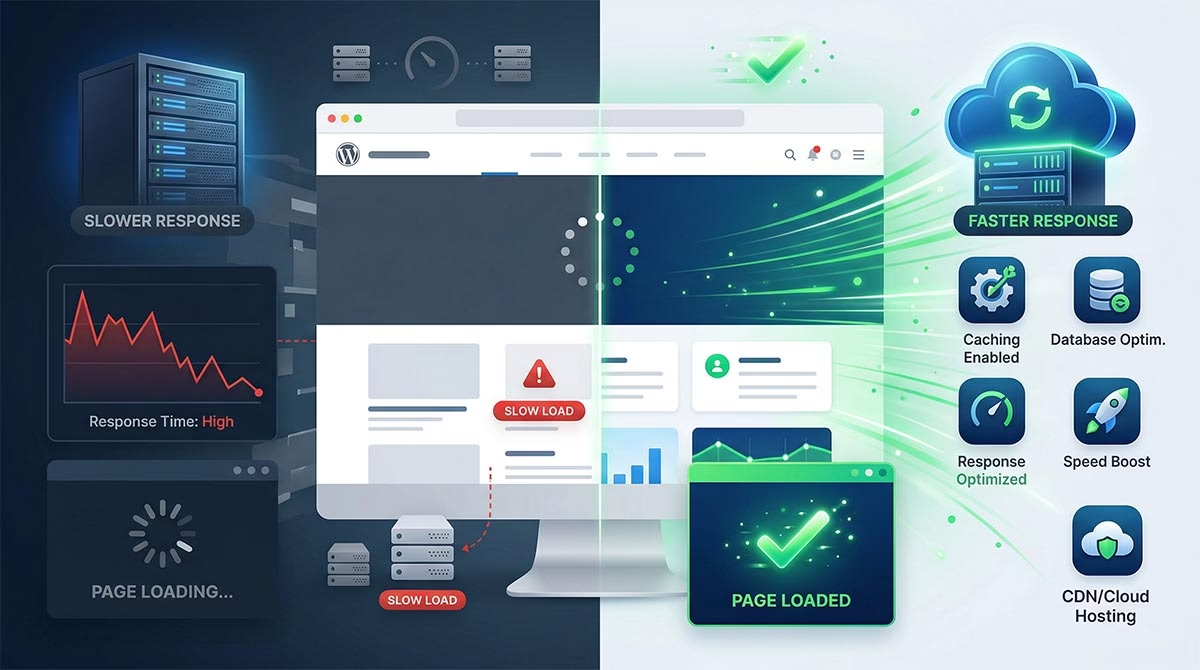
If your WordPress site feels slow before the page even starts to load, you likely have a server response problem. This delay happens before images, text, or buttons appear. It is the pause between a visitor asking for a page and your server starting to answer.
That small delay can hurt more than speed. It can raise bounce rates, weaken the user experience, and chip away at trust. It can also make your site feel cheap, even when your design looks great.
The good news is that this problem is usually fixable.
In this guide, you will learn what causes slow initial server response time in WordPress, how to test it, and the best ways to improve it. You will also see why hosting often plays the biggest role, and when moving to a better platform like Cloudways makes sense.
What Is Initial Server Response Time in WordPress?
Initial server response time is the time your server takes to react when someone visits your page. In simple terms, a visitor clicks your link, the browser asks for the page, and the server starts working. The faster it replies, the better.
Many site owners first notice this issue inside speed tools. You may see a warning about server response time or Time to First Byte. That sounds technical, but the idea is simple. Your server is taking too long to wake up and start the conversation.
This matters because first impressions happen fast. If your server drags, the whole page feels slow. Even if your images are compressed and your design is clean, a sluggish server can ruin the experience before anything else loads.
A good server response time is usually under 200 milliseconds. Between 200 and 600 milliseconds is workable, but not ideal. Anything above that often needs attention.
Why Server Response Time Matters More Than Most People Think
A slow page does not just annoy visitors. It can also hurt the actions you want people to take.
If you run a blog, readers may leave before they read your first sentence. If you run a store, shoppers may lose patience before a product page appears. If you sell services, a slow site can make your business look less professional.
This is why server response time is so important. It affects how fast your page starts loading. That first moment shapes how people feel about your site.
And here is the key point many people miss. You cannot always fix a server problem with design tweaks or image compression. Sometimes the real problem sits deeper. It comes from weak hosting, heavy plugins, or slow database work.
What Causes Slow Initial Server Response Time in WordPress?
There is no single reason behind a slow response. In most cases, a few things stack up and drag the site down.
Weak or Overcrowded Hosting
This is one of the biggest causes. Cheap shared hosting often puts too many websites on the same server. When traffic rises or resources get stretched, your site slows down. Even if your WordPress setup is decent, poor hosting can still hold it back.
No Full-Page Caching
WordPress builds pages on the fly. Without caching, the server has to repeat the same work every time someone visits. That extra work adds delay.
Heavy Plugins
Not all plugins are bad, but some are greedy. They ask the server to do too much. A few slow plugins can add real weight to each request.
Bloated Themes
A theme packed with features, builders, sliders, and fancy effects may look powerful, but it can also slow your site before the page even begins to render.
Slow Database Queries
WordPress stores a lot of content and settings in the database. If that database gets messy or overloaded, it can slow every request.
Old PHP Version
PHP helps WordPress run. If you use an outdated version, your site may work harder than it needs to.
Poor Server Location
If your server is far from your main audience, the request takes longer to travel. That distance adds delay.
Dynamic Pages
Some pages are harder to cache. Cart pages, checkout pages, account areas, and search results often require more live processing.
How to Measure Initial Server Response Time
Before you fix the problem, you need to spot it clearly.
Use tools like PageSpeed Insights, GTmetrix, WebPageTest, or your browser’s developer tools. These tools can show you where the delay starts and whether the problem comes from the server.
When you test, do not stop at the homepage. Check a blog post, a landing page, and if you run a store, test a product page too. Different pages can behave very differently.
Look for these signs:
- long wait before the page starts loading
- high Time to First Byte
- slow uncached pages
- backend delays during requests
Test more than once. Speed can vary by time of day, traffic load, and page type.
11 Proven Ways to Reduce Initial Server Response Time in WordPress
Now let’s get into the fixes that actually move the needle.
1. Upgrade to Faster WordPress Hosting
If your hosting is weak, every other fix has limits.
You can clean your database, cut plugins, and add caching, but a poor server will still slow you down. That is why hosting should be the first thing you review.
A stronger hosting setup gives your site more power, better speed, and better stability. It also reduces the strain during traffic spikes.
This is where managed cloud hosting can make a big difference. Cloudways is a smart option if you want better performance without handling server tasks on your own. It gives you a faster environment, built-in tools, and more room to grow. For many site owners, that means less time fighting speed issues and more time running the business.
If your site still feels slow after basic tuning, your host may be the real bottleneck.

2. Enable Full-Page Caching
Caching is one of the fastest ways to cut server work.
Instead of building the same page again and again, caching stores a ready-made version and serves it faster. That reduces the time your server needs to process the request.
For many WordPress sites, this single step can create a clear speed boost.
Some hosts offer server-level caching, which is often stronger and more reliable than plugin-only caching. This is another area where platforms like Cloudways stand out. They give you performance features that are already built into the stack, which removes a lot of guesswork.
3. Use a Lightweight Theme
A flashy theme can cost you speed.
Many themes come loaded with features you do not need. Extra widgets, animations, page builder tools, and fancy design effects can slow your site behind the scenes.
Choose a lightweight theme that focuses on clean code and fast performance. If your theme tries to do everything, it usually does too much.
Simple often wins.
4. Remove Slow and Unnecessary Plugins
Every plugin adds something to your site. Some add value. Others add weight.
Go through your plugin list and ask a simple question: do I really need this? If the answer is no, remove it.
Also watch for overlap. You may have several plugins doing similar jobs. That creates extra load without adding extra value.
If your site feels slow in the admin area too, plugins are often part of the problem. Disable them one by one and test again. That method can quickly reveal the troublemakers.
5. Upgrade to the Latest Stable PHP Version
This is an easy win that many people ignore.
Newer PHP versions run faster and use resources better. They can help WordPress handle requests with less effort.
Of course, always test before you update. Some old themes or plugins may not play nicely with a newer version.
Still, if your host makes PHP upgrades hard, that is a sign your setup may be outdated. On modern managed platforms, this process is much simpler.
6. Clean and Optimize Your Database
Over time, your WordPress database collects clutter. Post revisions, spam comments, expired data, and leftover plugin records can pile up.
That extra mess makes it harder for WordPress to find what it needs.
Cleaning the database helps your site work more efficiently. It can also lower response time, especially on content-heavy sites.
You do not need to become a database expert. Just keep things tidy. Remove what you no longer use. Optimize tables now and then. Small cleanup steps can lead to real gains.
7. Use Object Caching for Database-Heavy Sites
If your site relies on frequent database lookups, object caching can help.
This is especially useful for large blogs, membership sites, course platforms, and online stores. It stores common query results so WordPress does not need to fetch the same data over and over.
This can reduce the load on your database and improve speed on busy sites.
Object caching is powerful, but it is easier to use when your host supports it well. Cloudways makes this simpler for site owners who want more performance without extra complexity.
8. Add a CDN and Choose the Right Server Location
Distance matters.
If most of your visitors are in one region, but your server sits far away, every request has to travel farther. That adds delay.
Start by choosing a server location close to your main audience. Then add a CDN to deliver site assets from locations closer to each visitor.
A CDN does not always fix the server itself, but it improves overall speed and helps visitors feel the site is faster.
This is another reason smart hosting matters. Better hosting platforms give you more location choices and smoother CDN setup.
9. Cut Back on Third-Party Scripts
Your site may rely on outside tools like chat widgets, tracking scripts, ad code, fonts, or social embeds. These extras can pile up fast.
Some do not affect server response directly, but they can still make the site feel slow. Others create more backend work than you expect.
Audit your third-party tools. Keep the ones that matter. Remove the ones that do not earn their place.
Fewer outside requests often lead to a cleaner, faster experience.
10. Optimize Dynamic Content and WooCommerce Pages
Online stores and dynamic sites need special care.
Cart pages, checkout pages, account pages, and product filters often cannot use full-page caching in the same way as regular pages. That means your server has to do more work for each visitor.
If you run WooCommerce, keep your setup lean. Limit extra add-ons. Reduce heavy search or filter tools. Review background tasks and cart-related scripts.
The more dynamic the site becomes, the more important strong hosting becomes too. This is one reason growing store owners often move away from basic shared hosting and toward managed cloud platforms.
11. Monitor Performance Regularly
Speed is not a one-time task.
A plugin update can slow your site. A new tool can add too much load. Traffic spikes can reveal weaknesses you did not notice before.
That is why regular testing matters. Check your speed after big changes. Watch your server response over time. Treat performance like routine maintenance, not a one-off fix.
Sites drift. Smart owners keep them sharp.
The Biggest Mistake: Trying to Fix Everything With Plugins
When a site slows down, many people install more plugins. One for caching. One for image compression. One for cleanup. One for script control. Before long, the fix becomes part of the problem.
Plugins can help. But they are not magic.
If your server is weak, another plugin will not save you. In fact, it may add more load. This is why many WordPress sites stay slow even after owners try every speed trick they can find.
At some point, you need to ask a harder question. Is the real issue my setup, or is it my host?
That is often the turning point.
When It Makes Sense to Move to Better Hosting
Not every slow site needs a migration. But some do.
Here are a few signs your hosting may be holding you back:
- your server response time stays high even after caching
- your site slows down during traffic spikes
- your admin dashboard feels laggy
- product pages take too long to load
- support cannot offer real performance help
- you feel boxed in by limited settings
If this sounds familiar, moving to better hosting may be the fastest fix.
What should you look for? Strong resources. Built-in caching. newer PHP support. good scaling options. reliable backups. performance tools that do not require deep server knowledge.
This is where Cloudways becomes a strong option. It gives you the power of cloud hosting in a simpler package. You get room to grow, better speed tools, and a setup built for performance. That makes it a practical choice for site owners who have outgrown entry-level hosting but do not want the burden of full server management.
Quick Checklist to Reduce Initial Server Response Time in WordPress
Use this list as a fast review:
- upgrade weak hosting
- turn on full-page caching
- use a lightweight theme
- remove heavy plugins
- update to the latest stable PHP version
- clean your database
- use object caching if needed
- choose a server close to your audience
- add a CDN
- reduce third-party scripts
- test speed after every major change
If you work through this list and your site still feels slow, the problem likely goes deeper than basic cleanup.
Frequently Asked Questions
What is a good initial server response time for WordPress?
A strong target is under 200 milliseconds. If you are under 600 milliseconds, you are in a workable range. Above that, you should start looking for bottlenecks.
Is Time to First Byte the same as initial server response time?
They are closely related. Time to First Byte measures how long it takes before the browser receives the first piece of data from the server. That makes it a useful sign of server response speed.
Can plugins reduce server response time?
Yes, some can help. Caching plugins and database cleanup tools can reduce load. But if your host is weak, plugins alone will not solve the whole problem.
Does hosting affect server response time in WordPress?
Yes. In many cases, hosting is the biggest factor. A slow host can drag down the site no matter how much you optimize elsewhere.
Will a CDN reduce initial server response time?
A CDN can improve overall speed and reduce distance-related delay. It may not solve a weak origin server, but it still helps visitors load pages faster.
Why is my WordPress site slow even with caching enabled?
Caching helps, but it is not the whole answer. You may still have slow plugins, a heavy theme, poor hosting, or a messy database.
⏱️ How to Reduce Initial Server Response Time in WordPress
Server response time is the foundation of fast WordPress sites. Explore these expert guides on caching, CDN, hosting optimization, and performance hacks to slash TTFB and keep visitors happy.
Final Thoughts
If your WordPress site is slow before the page even begins to load, do not ignore it. That early delay shapes the whole user experience.
Start with the basics. Turn on caching. Clean up plugins. Use a lightweight theme. Update PHP. Optimize the database. These fixes can create real gains.
But be honest about the bigger picture too.
If your site still struggles after those improvements, your hosting may be the real problem. And when that happens, moving to a stronger platform can save you a lot of time and frustration.
Cloudways is worth a serious look if you want a faster WordPress setup without the stress of managing everything yourself. It gives growing sites a better foundation, which is often exactly what they need to cut server response time and feel fast again.