
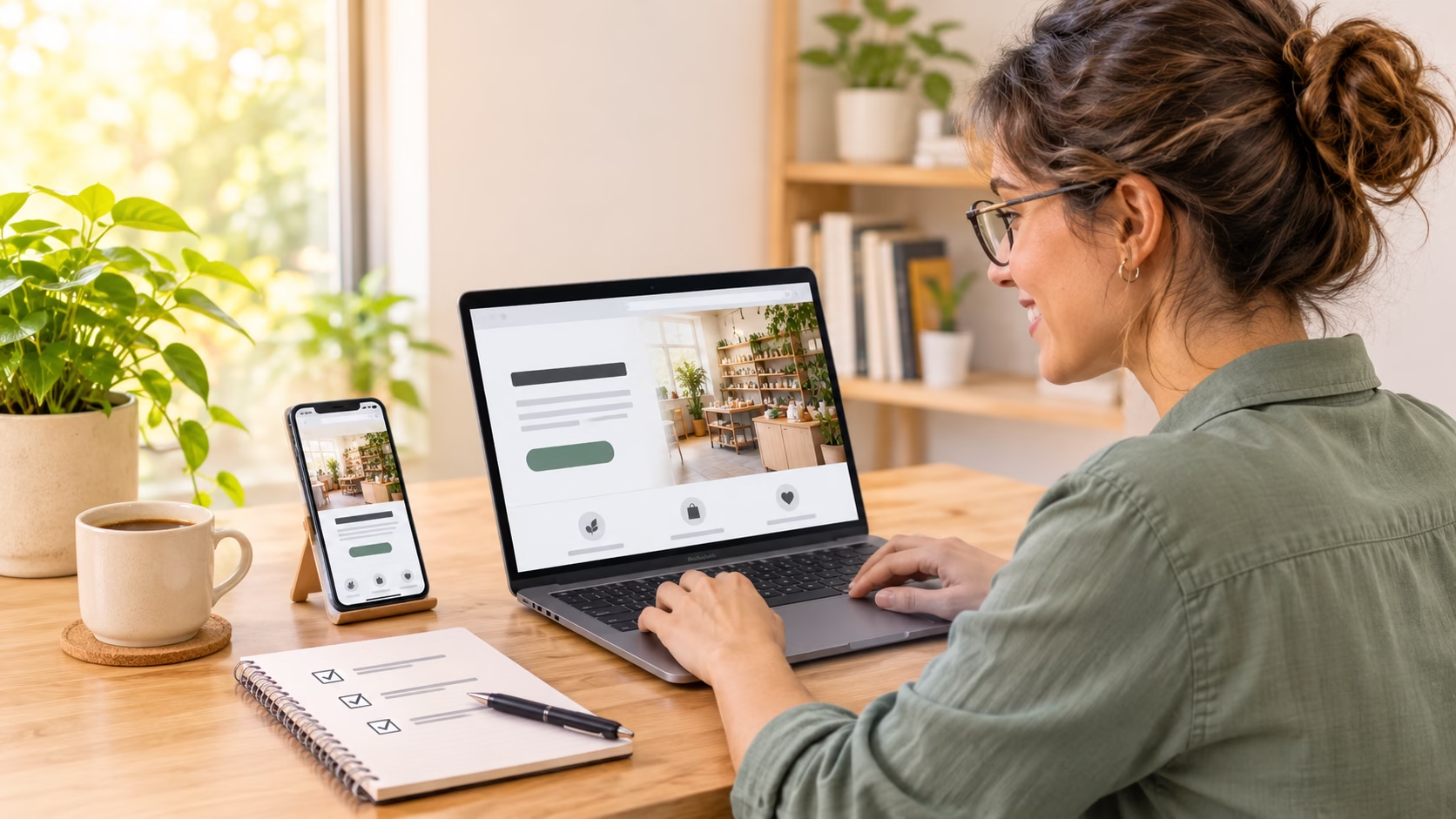
You can launch a one-page business website in a day if you give it one job. Pick the service you want to sell and the next step you want someone to take. Then choose a simple template, write five short sections, and test the page on your phone. Your finish line is a link you can send to a customer who asks, “Do you have a website?”
This page includes affiliate links. If you buy through one, I may earn a small commission. You pay the same price either way.
| If your business needs… | Start with… | What a visitor can do |
|---|---|---|
| Inquiries for one main service | A one-page site with a short form | Check the fit and ask for a quote |
| Bookings for a local service | A one-page site with a booking button | See what’s included and choose a time |
| A shop with many products | A store with separate product pages | Browse, compare, and buy |
1. Decide whether a one-page business website fits
When one page gives customers enough information
Think about the last person who asked about your work. What did they need to know before they felt ready to call? If you can answer those questions in a short conversation, one page may be enough.
Say you take family portraits. A parent wants to see your photos, check whether you work nearby, and ask about a date. Put those things on one page, and they can go from liking your work to sending an inquiry in a few minutes.
When customers need separate pages
Separate pages help when people have very different reasons for visiting. A parent booking a family shoot needs different prices, photos, and details from a company hiring you for staff portraits.
You can still launch today. Choose the service you want inquiries for first. Give it a page of its own, then add the other service when you have the details ready.
2. Plan the goal, content, and page structure
Choose the one action that makes the site worthwhile
Finish this sentence on paper: “After reading this page, I want you to ___.” Use a real action, such as asking for a quote, booking a call, or checking a date. That answer gives you the words for your main button.
For the portrait site, Ask about a date makes a good button for an inquiry form. Use Book a session if someone can pick a slot and confirm it. A visitor should know what will happen before they tap.
Gather the material and sketch the visitor’s path
Open a blank document. Write down your business name, service area, offer, and contact details. Gather a few photos you have permission to publish. If you have feedback from a customer, ask if you can share it.
Now sketch five boxes on paper. Give each one a question to answer.
- Hero [the first section visitors see] — What do you do, and where?
- About — Who will I work with?
- Services — What do I get?
- Testimonials [feedback from past customers] — What was it like to hire you?
- Contact — How do I take the next step?
Write a rough answer in each box. If you get stuck, picture one customer asking you the question out loud. The words you’d use in your reply are a good first draft.
3. Choose a no-code platform and domain
Try the task you’ll repeat after launch
A no-code builder lets you edit a page by clicking and typing. Try a one-page builder such as Carrd. Open a template that suits your service. Replace its main photo, change the headline, and find the phone preview.
Before you pay, check the plan for three things: your own web address, a working contact form, and any booking feature you need. Look up the renewal price, too. Add it to the cost of your web address to see what you’ll spend each year.
If you’ve already chosen WordPress and need hosting [a service that keeps your site online], Cloudways is an option. If your builder includes hosting, you can skip that purchase.
Pick a domain and connect it early
Your domain is the address people type to reach you. Try saying your first choice aloud. If a friend needs you to spell three words and explain a hyphen, try a shorter version.
Follow your builder’s steps to connect the address early in the day. You can write and design while the change takes effect. If your address is still pending at launch, use the builder’s public address if your plan offers one. Test it before you share it.
4. Design and write the five sections
Hero — tell visitors what you offer
Put your service and location where visitors see them first. For the portrait site, “Relaxed family photography in [Your Town]” gives a parent two answers at once. A headline like “Welcome to my site” uses the same space to tell them less.
Choose one photo that shows the work you want to book. Below the headline, add a sentence about the experience, then your main button. If the words sit over a busy photo, move them onto a plain background.
About — introduce the person doing the work
Use a clear photo of yourself and a few lines about how you work. Pick a detail that helps someone feel at ease. A parent with a shy child may care more about the first five minutes of a shoot than the year you bought your camera.
If you give children time to settle in, say so. If you help clients choose a spot close to home, mention that. Two true details give a reader a better feel for you than a list of traits like “friendly” and “professional.”
Services — help customers recognize the right offer
Give each service a name your customers would use. “Outdoor family photo session” tells a parent more than “The Signature Collection.” Under the name, explain who it suits, what they receive, and what it costs.
For a photo session, list the session length, how clients receive their photos, and when to expect them. Use details you can deliver. If the price depends on the job, explain what you need for a quote. A painter might ask for the room size and a few photos.
Testimonials — back up a claim with evidence
Choose customer feedback that answers a concern. A comment about how you handled a rainy shoot gives a new client a glimpse of your judgment. Ask for permission to use the comment and agree on how you’ll credit it.
If you’re just starting out, show a work sample instead. Give it a caption that explains the task and what you made. Label a practice project as such. The reader can still judge your work.
Contact — make the inquiry easy to finish
Keep the form short enough to fill out on a phone. For a first inquiry, the photographer could ask for a name, email, preferred date, and message. Let people leave the date blank if they’re still making plans.
Tell visitors what happens after they send the form. You might say, “I’ll email you to discuss dates and pricing.” Add a reply time if you can keep it. Then link each Ask about a date button to this section.
5. Check the mobile layout, basic SEO, and speed
Walk through the page on your phone
Open the page on your own phone and hold it as you usually would. Can you read the headline without zooming? Does the main photo still show the subject’s face? Scroll down and check for text that runs off the screen.
Tap into the form so the keyboard opens. Type a message and try to send it. This catches problems a desktop preview can miss, such as a bar that covers the send button.
Set the search title and describe the page
Basic SEO [helping search engines understand your page] starts with clear names. In your site settings, give the page a title such as “Family Photography in [Town] | [Business Name].” Use one main heading on the page itself.
Add a meta description [a short summary for search results]. Say what you offer, where you work, and what the visitor can do next. Use the words your customers use. Read the result aloud and trim any phrase you wouldn’t say to a customer.
Using WordPress? Follow this WordPress SEO setup guide to check your search settings.
Keep photos from slowing down the first screen
A full-size camera photo can be much larger than the space it fills. Resize a copy for the page, then compress it [reduce its file size]. Check that faces and fine details still look clear.
Add alt text [a description for people using screen readers] to photos that convey information. Describe what matters in the image. Then open the page on mobile data and see whether you can read the headline and tap the button while the photos load.
If your WordPress page still loads slowly, this guide helps you decide when to hire a speed expert or upgrade hosting.
6. Test, publish, and verify the live site
Test the full customer journey
Start at the top and act like a customer. Tap the main button, fill out the form, and send a message you’ll recognize. Look for a confirmation on the page.
Now check the business inbox. Did the inquiry arrive with all the details? Hit reply and check the address. Finding out now that replies go to your own inbox can save you a missed lead.
Publish and repeat the test at the public address
Select Publish, copy the web address, and open it in a private browser window [a window where you’re signed out]. This helps you spot a link that works only while you’re editing.
Ask someone to open that same link on their phone. Give them one task, such as “Find out if I cover your town and ask about Saturday.” Let them try without hints. If they get stuck, fix that spot before sharing the link more widely.
7. Follow a sample hour-by-hour launch schedule
Hours 1–4 — move from idea to first draft
| Hour | What to do | You’re ready to move on when… |
|---|---|---|
| 1 | Choose your audience, offer, and main action. | You can name all three in one sentence. |
| 2 | Pick a builder and template. Start the domain connection. | You can edit the draft and preview it. |
| 3 | Gather photos, work samples, and contact details. | Each of the five sections has something to say or show. |
| 4 | Write the copy in a plain document. | Someone can read it and tell you how to hire you. |
Hours 5–8 — build, test, and publish
| Hour | What to do | You’re ready to move on when… |
|---|---|---|
| 5 | Build the hero, about, and services sections. | The offer is clear on both a laptop and a phone. |
| 6 | Add proof, contact details, and the form. | A test message reaches your inbox. |
| 7 | Check the phone layout, photos, and search settings. | The page is easy to read and has a clear title. |
| 8 | Ask for a quick test, publish, and check the live link. | A visitor can complete the main action at the public address. |
Protect that last hour. If you fall behind, use one strong photo and leave the gallery for later. A customer needs a working way to reach you today.
8. Avoid common one-page website mistakes
A vague headline or competing buttons
Read the first screen without looking at your logo. Could it belong to a dozen different businesses? Replace broad words like “quality solutions” with the service someone can buy.
Check the buttons next. If “Follow,” “Subscribe,” and “Book” all stand out, choose the one tied to your goal. Move the other links lower on the page so the next step is easy to spot.
Missing details or a dead-end inquiry
Scan for template text, sample prices, and social links that still lead to the builder. Check the small print at the bottom, where an old email address is easy to miss.
Then look for gaps only a customer would notice. A dog groomer might show great photos but leave out the town. A freelancer might offer a free call but forget the booking link. Fix anything that would make a willing customer stop and ask how to proceed.
9. Frequently asked questions
Can I launch in a day if I don’t have a logo?
Yes. Type your business name in a clear font at the top of the page. A readable name, a good work sample, and an easy way to reach you give visitors enough to get started.
How much should I budget for a one-page website?
Add the builder’s renewal price, your domain renewal, and any paid form or booking tools. Compare costs over a full year. If you pay annually, check the amount due at checkout.
Can a one-page business website appear in search results?
Yes. Publish the page, check that your settings allow search engines to list it, and describe your service clearly. A new site can take time to appear, so share your direct link with customers from day one.
What can I use if I don’t have testimonials yet?
Show a sample, a before-and-after pair, or a brief account of your process. Explain what the reader is looking at and which part you did. Get permission before you publish client work.
Can I add more pages later?
Check your builder’s page limit and what an upgrade would cost. A service is ready for its own page when customers need distinct prices, examples, or answers before they can book it.
10. Conclusion — take the first step today
Start with the sentence your customer needs to hear
Set a 15-minute timer and write, “I help [customer] with [service] in [area or online].” Under it, write the words for the button you want that person to tap. You now have the first screen of your one-page business website on paper.
Put those two lines into a template today. When the page is live, send the link to one person and ask them to try the button. End the day with their inquiry in your inbox.