Buying managed cloud hosting is confusing.
Every host says it is fast. Every plan says it is secure. Every sales page says it is “built for growth.”
But here is the truth.
There is no single best managed cloud host for everyone.
The best choice depends on what you are building.
A small WordPress blog does not need the same server as a busy online store. A Laravel app has different needs than a gaming server. A local business site may need a server near its customers. A global brand may need strong speed in many countries.
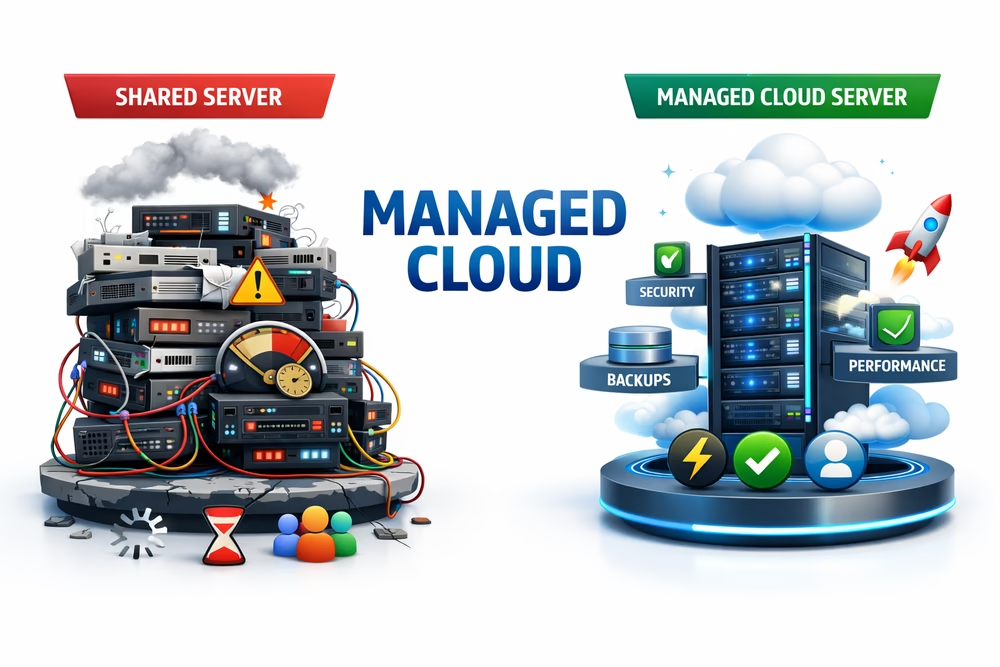
That is why random hosting lists often fail.
They rank hosts like everyone has the same goal. You do not.
You may need:
- Low cost
- Fast page speed
- Easy WordPress tools
- Strong support
- Better uptime
- Room to scale
- A server in the right location
- Simple setup with no tech stress
Each of these needs points to a different host.
For example, Cloudways can be a smart pick for flexible cloud hosting. Kinsta is strong for premium WordPress sites. WP Engine works well for serious WordPress teams. Hostinger is often best when budget matters most.
But none of them is perfect for every project.
That is what this guide will fix.
We will break down managed cloud hosting by real use case. Not hype. Not vague features. Real needs.
You will learn which host makes sense for:
- Gaming servers
- Laravel apps
- WordPress websites
- eCommerce stores
- Different server locations
We will also look at speed, support, price, and ease of use.
The goal is simple.
You should not have to guess. You should not waste money on the wrong plan. And you should not buy more server power than you need.
By the end of this guide, you will know exactly which server to buy today.
Best Managed Cloud Hosting for Gaming Servers
Gaming servers need one thing above all else.
Fast response time.
A slow website is annoying. A slow game is worse. It can ruin the whole match.
When a player moves, shoots, builds, or attacks, the server must reply fast. If it does not, players see lag. They may rubber-band. Hits may miss. Friends may quit.
That is why gaming hosting is not like normal web hosting.
Why Gaming Servers Need Low Ping
Ping is the time it takes for data to travel.
Low ping means the server replies fast. High ping means delay.
For most games, you want the server near your players.
If your players are in Asia, pick an Asian server. If they are in Europe, pick Europe. If they are global, you may need more than one server.
This matters most for:
- Minecraft
- Palworld
- Rust
- Valheim
- Counter-Strike 2
- ARK
- Terraria
Even a strong server can feel bad in the wrong location.
So do not only buy “more power.”
Buy the right location.
Why Fast RAM Also Matters
Game servers keep many things active at once.
They track players, maps, mobs, items, mods, and live actions.
That needs fast RAM.
More RAM helps when you run:
- Large worlds
- Many players
- Heavy mods
- Custom plugins
- Multiple game servers
- Big survival maps
For a small private server, 4 GB RAM may be enough.
For modded Minecraft or Palworld, start with 8 GB RAM.
For a busy community, look at 16 GB RAM or more.
You also want NVMe storage. It helps worlds load faster. It also helps after restarts and backups.
Best Pick for Most Gamers: Hostinger Game Server Hosting
For most players, Hostinger is the best starting point.
It is simple, cheap, and built for popular games.
Hostinger offers game server plans with a Game Panel, DDoS protection, weekly backups, NVMe storage, and data centers worldwide. Its listed game plans start with 4 GB RAM and go up to 32 GB RAM.
That makes it a strong fit for casual groups and small gaming communities.
You do not need to build everything from scratch. You can pick a game, set it up, and start playing.
This is the main reason I like it for beginners.
It gives you enough control without making you feel lost.
Best Hostinger Plan to Start With
For most users, start with:
Hostinger Game Panel 2
This plan gives you:
- 2 vCPU cores
- 8 GB RAM
- 100 GB NVMe storage
- 8 TB bandwidth
Hostinger lists this tier as a popular game server plan. It also includes support for modded games and one-click setup features.
This is a smart base for:
- A small Minecraft server
- A private Palworld server
- A Valheim group
- A light Rust server
- A modded server with a few friends
If you expect many players, skip the small plan.
Go to 16 GB RAM instead.
Gaming servers can hit limits fast.
When AWS GameLift Is Better
Hostinger is great for players and small groups.
But it is not the best fit for a serious game studio.
If you are building a real multiplayer game, look at Amazon GameLift Servers.
AWS GameLift is made for game teams that need global scale. It supports many AWS Regions and Local Zones, so you can place servers closer to players.
It can also help with scaling, fleets, and match-based hosting.
That is overkill for a Minecraft night with friends.
But it makes sense for:
- Indie game studios
- Real-time multiplayer games
- Global player bases
- Matchmaking systems
- Large launch days
- Games with traffic spikes
The downside is clear.
AWS gives you more power. But it also adds more work.
You may need a developer or cloud expert.
Pros and Cons of Hostinger for Game Servers
Pros
- Easy setup: Good for non-technical users.
- Game Panel included: You can manage games from one place.
- Good value: Plans include strong RAM for the price.
- NVMe storage: Faster world loads and saves.
- DDoS protection: Helpful for public servers.
- Weekly backups: Useful if a world breaks.
- Worldwide data centers: Better chance of low ping.
- Root access: More control when you need it.
Cons
- Not fully hands-off: You still manage game settings.
- Promo pricing can jump: Check renewal prices before buying.
- Not ideal for studios: AWS is better for global game launches.
- Support may not fix mod issues: Mods can still be your problem.
- Big servers need bigger plans: Cheap plans may run out fast.
Quick Verdict
Choose Hostinger if you want a game server for friends, fans, or a small community.
It is the best fit for most people.
Choose AWS GameLift if you are building a real online game.
It is stronger for global scale, but harder to use.
For most readers, the safe pick is simple:
Start with Hostinger Game Panel 2.
If your player base grows, move up to 16 GB RAM or higher.
Best Managed Cloud Hosting for Laravel & PHP Apps
Laravel and PHP apps need more control than a basic website.
You are not just uploading pages.
You may need to run commands. Push code from Git. Set up background jobs. Test changes before they go live. That is why normal shared hosting often feels too tight.
For most Laravel projects, you want managed cloud hosting with developer tools built in.
The best fit for most teams is Cloudways paired with DigitalOcean, Vultr, AWS, or Google Cloud.
It gives you cloud power without forcing you to manage the full server alone.
Why Laravel Hosting Is Different
Laravel apps often need extra server tasks.
A good Laravel host should handle more than traffic.
It should support:
- SSH access
- Git deployment
- Staging sites
- Cron jobs
- Queue workers
- Composer
- PHP version control
- Database access
- Free SSL
- Backups
- Easy scaling
If your host makes these hard, your work slows down.
That matters a lot when your app grows.
Why SSH Access Matters
SSH access lets developers connect to the server.
This is key for Laravel.
You may need to run commands like:
- php artisan migrate
- php artisan queue:restart
- composer install
- php artisan config:cache
Without SSH, simple tasks become painful.
You may have to ask support for basic changes. That wastes time.
A real Laravel host should let you control your app. But it should still manage the boring server work.
That is the sweet spot.
Why Git Integration Matters
Most developers use Git to manage code.
So your host should work with Git.
This lets you push updates in a clean way.
You can:
- Track code changes
- Roll back bad updates
- Work with a team
- Deploy faster
- Avoid manual file uploads
Manual uploads are risky.
One missed file can break the app.
Git keeps your workflow clean.
Cloudways supports Git-based deployment, which makes it a good fit for Laravel teams. You can connect your repo and deploy with less mess.
Why Staging Is a Must
A staging site is a private copy of your app.
You use it to test changes before users see them.
This is huge for Laravel and PHP apps.
You can test:
- New features
- Database changes
- Payment flows
- Plugin updates
- API changes
- Design changes
- Bug fixes
Never test big changes on a live app.
That is how stores break. Forms stop working. Users get errors. Sales disappear.
A staging site gives you a safe place to test first.
For client work, it also looks more professional.
Best Pick: Cloudways + DigitalOcean
For most Laravel and PHP apps, start with Cloudways on DigitalOcean.
This setup gives you a strong mix of speed, price, and ease.
You get the cloud server. But Cloudways adds a clean control panel on top.
That means you do not have to manage every server detail yourself.
It is a good choice for:
- Laravel apps
- PHP dashboards
- SaaS projects
- Client portals
- Agency builds
- Custom WordPress and PHP mixes
- Small to mid-size web apps
DigitalOcean is usually the best first choice because it is simple and cost-friendly.
You can scale later if the app grows.
When to Choose Vultr, AWS, or Google Cloud
Cloudways lets you pick other cloud providers too.
That is useful.
Choose Vultr if you want strong speed in a certain city or region.
Choose AWS if your app may need bigger cloud tools later.
Choose Google Cloud if you want premium cloud power and strong global reach.
But do not overbuy on day one.
Most Laravel apps do not need AWS right away.
Start lean. Watch traffic. Then scale.
What Plan Should You Start With?
For a new Laravel app, start with a small cloud server.
A good base is:
- 1–2 CPU cores
- 2–4 GB RAM
- SSD or NVMe storage
- Automated backups
- Staging enabled
- Free SSL
- SSH access
If your app has queues, heavy reports, or many users, start higher.
For a serious app, 4 GB RAM is a safer floor.
Laravel can run on less. But smooth work needs breathing room.
Pros and Cons of Cloudways for Laravel
Pros
- Easy server setup: No deep server work needed.
- SSH access: Developers can run Laravel commands.
- Git deployment: Better code workflow.
- Staging sites: Safer testing before launch.
- Choice of cloud providers: Pick DigitalOcean, Vultr, AWS, or Google Cloud.
- Simple scaling: Add more power when needed.
- Backups included: Safer for client and business apps.
- Good for agencies: You can manage many apps in one place.
Cons
- Not the cheapest option: You pay for ease and support.
- Email hosting is separate: You may need another tool for email.
- Not full cloud control: Some advanced server users may feel limited.
- AWS and Google Cloud cost more: Great power, higher bills.
- You still need dev skill: Cloudways helps, but it does not code for you.
Who Should Use Cloudways?
Cloudways is best if you want control without server stress.
Use it if you are:
- A Laravel developer
- A small agency
- A SaaS founder
- A freelance PHP developer
- A startup with a small tech team
- A business running a custom app
It is not the best pick if you want the lowest price.
It is also not for teams that want full raw cloud access.
But for most Laravel projects, it hits the right balance.
Verdict
For Laravel and PHP apps, choose Cloudways with DigitalOcean first.
It gives you SSH, Git, staging, backups, and easy scaling.
That is enough for most real projects.
If your app grows fast, move to a larger Cloudways server or pair it with AWS.
Start simple. Keep control. Scale only when the data says so.
Best Managed Cloud Hosting for High-Traffic WordPress & eCommerce
High-traffic WordPress sites need more than basic hosting.
This is even more true for WooCommerce.
A blog can cache most pages. A store cannot.
Your cart, checkout, user account, stock, and payment pages must stay live. They change for each shopper. That makes WooCommerce much harder to host.
If your store gets real traffic, cheap shared hosting is a risk.
It may work on a quiet day.
Then a sale goes live.
Traffic spikes. The server slows down. Checkout breaks. Orders fail.
That is not a hosting issue anymore.
That is lost money.
Why WooCommerce Needs Strong Caching
Caching stores ready-made parts of your site.
This helps pages load faster.
For normal WordPress sites, page caching can do a lot.
But WooCommerce is more complex.
Your host must know what to cache and what not to cache.
For example, you should cache:
- Product pages
- Blog posts
- Category pages
- Static files
- Images
- CSS and JavaScript
But you should not fully cache:
- Cart pages
- Checkout pages
- My Account pages
- Live stock changes
- Payment steps
Bad caching can break a store.
A shopper may see the wrong cart. Stock may show wrong numbers. Checkout may fail.
That is why WooCommerce needs hosting built for WordPress.
Not cheap “unlimited” hosting.
Why Object Cache Matters
WooCommerce stores use the database all the time.
Every product view, cart update, coupon, and order hits the database.
That gets heavy fast.
This is where object cache helps.
Object cache saves common database results in memory. So your site does not ask the database the same thing again and again.
The most common tool for this is Redis.
Redis can help with:
- Faster product filters
- Faster cart updates
- Faster admin pages
- Faster checkout steps
- Lower database load
- Better speed during sales
For busy WooCommerce stores, Redis is not a nice bonus.
It is a must-have.
Best Pick for Premium WordPress: Kinsta
Kinsta is one of the best choices for high-traffic WordPress sites.
It is fast, clean, and built for serious WordPress users.
Kinsta is a great fit if you run:
- A busy blog
- A media site
- A WooCommerce store
- A membership site
- A course website
- A high-value lead site
The big win is ease.
You get managed WordPress hosting without touching the server. Backups, security, caching, and scaling are handled for you.
Kinsta is not the cheapest choice.
But cheap is not the goal here.
The goal is uptime, speed, and fewer problems.
If one slow checkout can cost you sales, better hosting pays for itself.
Best Pick for WordPress Teams: WP Engine
WP Engine is another strong pick.
It is a smart choice for teams, agencies, and larger WordPress sites.
WP Engine works well when you need:
- Staging sites
- Team access
- Strong support
- Developer tools
- Good security
- Stable WordPress performance
- A host built around WordPress
It is also a good fit for brands that update often.
If your team pushes new pages, tests plugins, or runs campaigns, staging matters a lot.
You can test first. Then push live when ready.
That helps avoid broken pages during big sales.
Kinsta vs WP Engine: Which One Should You Pick?
Choose Kinsta if you want a premium, smooth WordPress host with strong speed.
It is a great fit for store owners and site owners who want less tech work.
Choose WP Engine if your team needs more workflow tools.
It is a strong pick for agencies, content teams, and bigger WordPress projects.
Both are much safer than cheap shared hosting for WooCommerce.
The better choice depends on your style.
- Pick Kinsta for simple premium performance.
- Pick WP Engine for team work and staging.
- Avoid cheap shared hosting for serious stores.
Why Cheap Shared Hosting Will Crash Your Store
Cheap shared hosting means you share one server with many other sites.
That is fine for tiny blogs.
It is bad for busy stores.
Your store may slow down because another site is using too much power. You may also hit hidden limits during traffic spikes.
This often happens during:
- Flash sales
- Product launches
- Holiday campaigns
- Paid ad spikes
- Influencer mentions
- Email blasts
- Black Friday sales
Your store does not fail slowly.
It can fail all at once.
Pages stop loading. Checkout spins. Payments time out. Customers leave.
A $5 hosting plan can cost you thousands in missed sales.
That is the hard truth.
What High-Traffic WordPress Hosting Must Include
Do not buy based on price alone.
Look for these features first:
- Server-level caching
- Redis object cache
- Fast PHP workers
- Daily backups
- Staging site
- Free SSL
- Built-in CDN
- Malware protection
- Automatic scaling options
- Expert WordPress support
- Strong database performance
- Clear traffic limits
For WooCommerce, also check checkout speed.
Your homepage speed matters.
But checkout speed makes money.
Pros and Cons of Kinsta and WP Engine
Pros
- Built for WordPress: Better fit than general hosting.
- Strong caching: Helps pages load fast under traffic.
- Redis support: Great for busy WooCommerce stores.
- Better uptime: Safer during sales and launches.
- Staging included: Test changes before going live.
- Expert support: Support teams understand WordPress.
- Better security: Less stress from attacks and malware.
- Easy backups: Safer if an update breaks your site.
- Good scaling: You can handle bigger traffic spikes.
Cons
- Higher price: Premium WordPress hosting costs more.
- Plugin limits: Some plugins may be blocked for safety.
- Traffic limits: Plans may charge more if you grow.
- Less server control: Power users may want more access.
- WooCommerce can cost more: Stores need more resources.
- Not ideal for tiny sites: Small blogs may not need this much power.
Best Plan Advice
If you run a normal WordPress site, start with an entry managed plan.
If you run WooCommerce, do not start too small.
Pick a plan built for stores.
A good WooCommerce plan should include:
- More PHP workers
- Redis object cache
- Strong database power
- Fast support
- Room for traffic spikes
If you are running paid ads, go bigger.
Ad traffic is unforgiving.
One slow checkout can waste your whole campaign budget.
Verdict
For high-traffic WordPress, choose Kinsta or WP Engine.
For WooCommerce, do not use cheap shared hosting.
Use a host with strong caching, Redis, backups, staging, and real WordPress support.
If your store makes money, treat hosting like sales insurance.
Best Managed Cloud Hosting by Location: USA vs. Bangladesh
Server location matters more than most people think.
It affects speed, user experience, and sometimes local SEO.
If your server is far from your visitors, data travels farther. That adds delay. Your site may feel slow, even with good hosting.
For local sites, this can hurt trust fast.
A slow site makes people leave.
And when people leave, rankings and sales can suffer.
Why Server Location Matters for Speed
Think of your server like a shop.
If your customers are in New York, a server in the USA makes sense.
If your customers are in Dhaka, Chattogram, or Kolkata, an Asian server is better.
The closer the server is, the faster the first response can be.
This is called lower latency.
Kinsta also recommends choosing the data center closest to your target users to reduce latency and improve speed.
WP Engine gives the same advice. It says a closer data center can reduce round-trip time and help pages load faster.
Why Server Location Can Help Local SEO
Google does not rank your site only by server location.
That would be too simple.
But speed does help SEO.
A fast site gives users a better experience. People stay longer. They click more. They bounce less.
That sends better signals.
For local SEO, speed matters even more because users are often ready to act.
They may want to:
- Call your business
- Visit your shop
- Book a service
- Buy a product
- Get directions
- Compare prices
If your page loads slowly, they may choose a rival.
So, server location is not a magic ranking trick.
It is a speed and trust advantage.
Best Server Location for a USA Audience
If most of your traffic is from the USA, host in the USA.
This is simple.
Good options include:
- Cloudways with DigitalOcean, Vultr, AWS, or Google Cloud
- Kinsta
- WP Engine
- Hostinger VPS
Cloudways offers many USA locations through its cloud partners, including cities like Atlanta, New York, San Francisco, Seattle, Dallas, Oregon, Ohio, and more.
Kinsta offers US data center options such as Ashburn, Chicago, Phoenix, and San Jose for managed WordPress hosting.
WP Engine supports Google Cloud locations in the USA, including Iowa and South Carolina. Its premium AWS options also include Virginia, Ohio, and Oregon.
Best Pick for USA Sites
For WordPress, choose Kinsta or WP Engine.
For Laravel, PHP apps, or mixed sites, choose Cloudways.
If you want more control, pair Cloudways with DigitalOcean or Vultr.
If you need enterprise cloud power, pair Cloudways with AWS or Google Cloud.
Best Server Location for Bangladesh
Bangladesh is a different case.
Most big managed cloud hosts do not offer a Bangladesh origin server.
So the smart move is to choose a nearby Asian location.
Good choices include:
- Singapore
- Mumbai
- Delhi
- Chennai
- Kolkata, if available through a network edge
- Bangkok
- Kuala Lumpur
- Hong Kong
For most Bangladesh sites, Singapore is a safe pick.
It has strong global network quality. It also works well for South Asia and Southeast Asia.
Mumbai can also be strong if your users are mainly in Bangladesh and India.
Cloudways lists Asian and South Asian locations such as Singapore, Mumbai, Bangalore, Chennai, Hyderabad, Delhi, Bangkok, Kuala Lumpur, Hong Kong, Tokyo, Seoul, and more through its cloud partners.
Kinsta offers Asian options such as Mumbai, Singapore, Tokyo, Osaka, Seoul, and Batam.
WP Engine supports Singapore, Tokyo, Taiwan, and Sydney on Google Cloud, while premium AWS plans include Singapore and Sydney.
Best Pick for Bangladesh Sites
For most Bangladesh business sites, choose:
Cloudways + DigitalOcean or Vultr in Singapore
This gives you strong speed, fair pricing, and easy scaling.
For premium WordPress or WooCommerce, choose:
Kinsta in Singapore or Mumbai
For WordPress teams, choose:
WP Engine in Singapore
USA vs. Bangladesh: Simple Rule
Use this rule before you buy:
- If most users are in the USA, choose a US data center.
- If most users are in Bangladesh, choose Singapore or Mumbai.
- If users are global, choose the best main region, then use a CDN.
- If you run WooCommerce, place the origin near your buyers.
- If you run a blog, CDN can cover more of the speed gap.
Do not pick a server based on where you live.
Pick it based on where your visitors live.
Use Cloudflare to Fix Location Gaps
A CDN stores copies of your site files around the world.
That means visitors can load images, scripts, and style files from a nearby edge server.
The easiest CDN choice is Cloudflare.
Cloudflare runs a large global network across hundreds of cities and says every service runs in every data center.
Cloudflare also has edge locations in Bangladesh, including Dhaka and Chittagong listed on its status network.
That is huge for Bangladesh traffic.
Even if your main server is in Singapore, Cloudflare can serve many files closer to Bangladeshi users.
This helps with:
- Images
- CSS files
- JavaScript files
- Cached pages
- Security
- DDoS protection
- Global speed
But know the limit.
A CDN does not fully replace a good server location.
Your checkout, admin area, search, cart, and logged-in pages may still hit the main server.
So the best setup is:
Nearby server + Cloudflare CDN
That gives you the best of both worlds.
Best Location Setup by Use Case
Local USA Business
Use:
- Kinsta USA
- WP Engine USA
- Cloudways USA
Then add Cloudflare.
Bangladesh Business Website
Use:
- Cloudways Singapore
- Kinsta Singapore or Mumbai
- WP Engine Singapore
Then add Cloudflare.
Bangladesh WooCommerce Store
Use:
- Kinsta Singapore or Mumbai
- Cloudways Singapore with Redis
- WP Engine Singapore
Then add Cloudflare and object cache.
Global Blog or Media Site
Use:
- Cloudways
- Kinsta
- WP Engine
Pick the region with your largest audience.
Then use Cloudflare for the rest.
Quick Verdict
For a USA audience, host in the USA.
For Bangladesh, choose Singapore or Mumbai.
For global traffic, use Cloudflare CDN on top.
The bold move is this:
Do not chase the cheapest server.
Buy the server closest to your money.
Quick Buying Checklist
Before you click Buy, ask yourself these three questions.
1. Where are my visitors?
Pick a server near your main audience.
- USA visitors? Choose a USA data center.
- Bangladesh visitors? Choose Singapore or Mumbai.
- Global visitors? Use Cloudflare CDN too.
Do not buy based on where you live.
Buy based on where your users are.
2. What am I hosting?
Different projects need different hosts.
- Laravel or PHP app: Choose Cloudways.
- High-traffic WordPress site: Choose Kinsta.
- WooCommerce store: Choose Kinsta or WP Engine.
- Game server: Choose Hostinger.
- Agency WordPress work: Choose WP Engine.
The “best” host depends on the job.
3. Can this host handle traffic spikes?
Cheap hosting may look fine at first.
Then traffic hits.
Your site slows down. Your checkout fails. Your game lags. Your app breaks.
Before buying, check for:
- Backups
- Staging
- Server-level caching
- Redis object cache
- SSH access
- CDN support
- Easy scaling
- Good support
If the host cannot grow with you, skip it.
Final Verdict
Managed cloud hosting is not about buying the biggest server.
It is about buying the right server.
If you run WordPress, choose a WordPress-first host.
If you run Laravel, choose a developer-friendly host.
If you sell online, never trust cheap shared hosting.
If you serve local users, choose a close data center.
And if your traffic is global, add Cloudflare.
Simple.
Top 3 Overall Picks
| Best For | Top Pick | Starting Price |
|---|---|---|
| Laravel, PHP apps, agencies, and flexible cloud hosting | Cloudways + DigitalOcean | From about $11/month |
| High-traffic WordPress and WooCommerce stores | Kinsta | From about $30/month |
| WordPress teams, agencies, and serious business sites | WP Engine | From about $30/month |
Prices can change fast.
Click the links, compare today’s plans, and buy the host that fits your project now.